
We want you to see exactly how your beautiful personalized canvas will look before you buy it! If the Live Preview is blank, loading endlessly, or simply not showing up, here is a quick guide on why this happens and how you can fix it.
1. Missing Required Information (The Most Common Reason) Our Live Preview tool acts like a digital artist—it needs all your instructions before it can paint the picture! If the preview isn’t generating, you likely missed a required step.
-
How to fix: Scroll carefully through the personalization section on the product page. Ensure that every field marked as required (names, dates, quotes, colors) is filled in. If you are uploading a photo, please wait until the upload bar reaches 100%. Once everything is complete, the preview should appear automatically within 3-5 seconds.
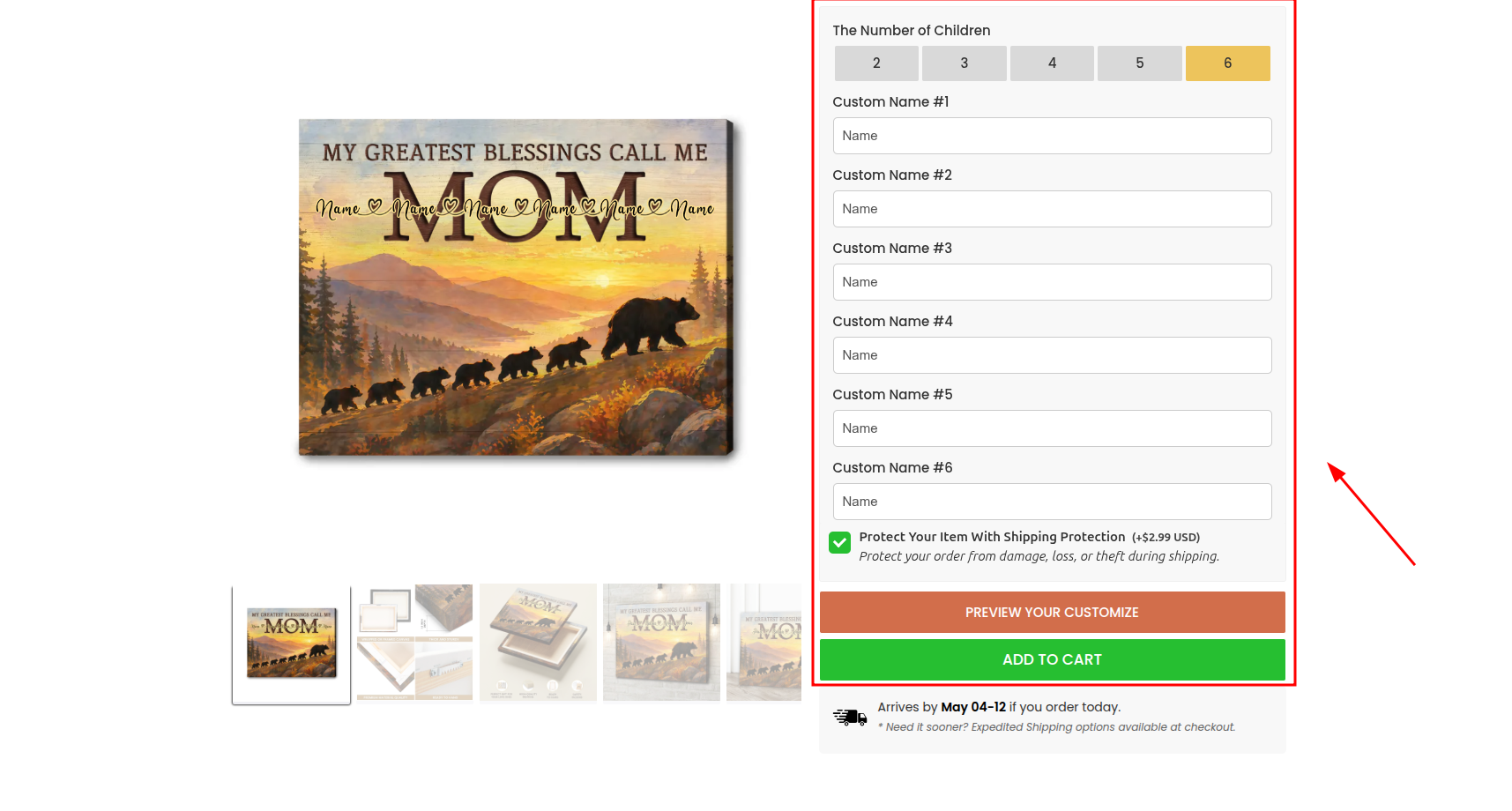
2. Technical Hiccups & How to Fix Them If all your information is filled out correctly but the preview is still missing, it might be a minor technical glitch:
-
In-App Browsers (Facebook/Instagram/TikTok): If you clicked on one of our ads, you are likely using a social media app’s built-in browser, which often blocks our preview scripts from running.
-
Fix: Tap the three dots (…) at the top or bottom right of your screen and select “Open in System Browser” (like Chrome or Safari).
-
-
Slow Internet Connection: High-quality canvas mockups take a lot of data to generate. If your Wi-Fi or cellular signal is weak, the preview might time out.
-
Fix: Check your connection and try refreshing the page.
-
-
Cache Conflicts: Your browser might be holding onto old data.
-
Fix (Desktop): Perform a “Hard Refresh” by pressing Ctrl + Shift + R (Windows) or Cmd + Shift + R (Mac).
-
3. Is my order still safe to place if I can’t see the preview? Yes, but please review your text carefully! Even if your screen fails to display the preview image, our backend system still securely captures all the text, options, and high-resolution photos you submitted.
-
Your Responsibility: To ensure fast delivery, our production process is highly automated. We will proceed to print the exact details you provided. Please double-check your spelling and dates in your Cart and in your Order Confirmation email.
-
Our Policy: Our design team will only put your order on hold and reach out to you if your custom information or photos are completely missing or corrupted.
4. When to Contact Support If you have filled in all fields, tried a different browser, and still cannot get the preview to work, we are here to help! Please take a screenshot of the options you filled out and reach out to us via our Contact Us page. Our technical team will investigate the issue and help you place your order smoothly.