
Made a typo at checkout, or moved before your order shipped? You can update the delivery address for any unfulfilled order directly from your account. This guide walks you through every step.
Before You Begin
- Your order must be not yet fulfilled. Once it has been handed to the carrier, the address shows a grey “Locked” badge and can no longer be changed online.
- We currently support address changes for orders shipping to: United States, Canada, Australia, New Zealand, United Kingdom, U.S. Minor Outlying Islands. Other destinations cannot be changed online — please contact support.
- The new address is verified automatically before the change is saved, to prevent failed deliveries.
Step 1 — Sign in to Your Account
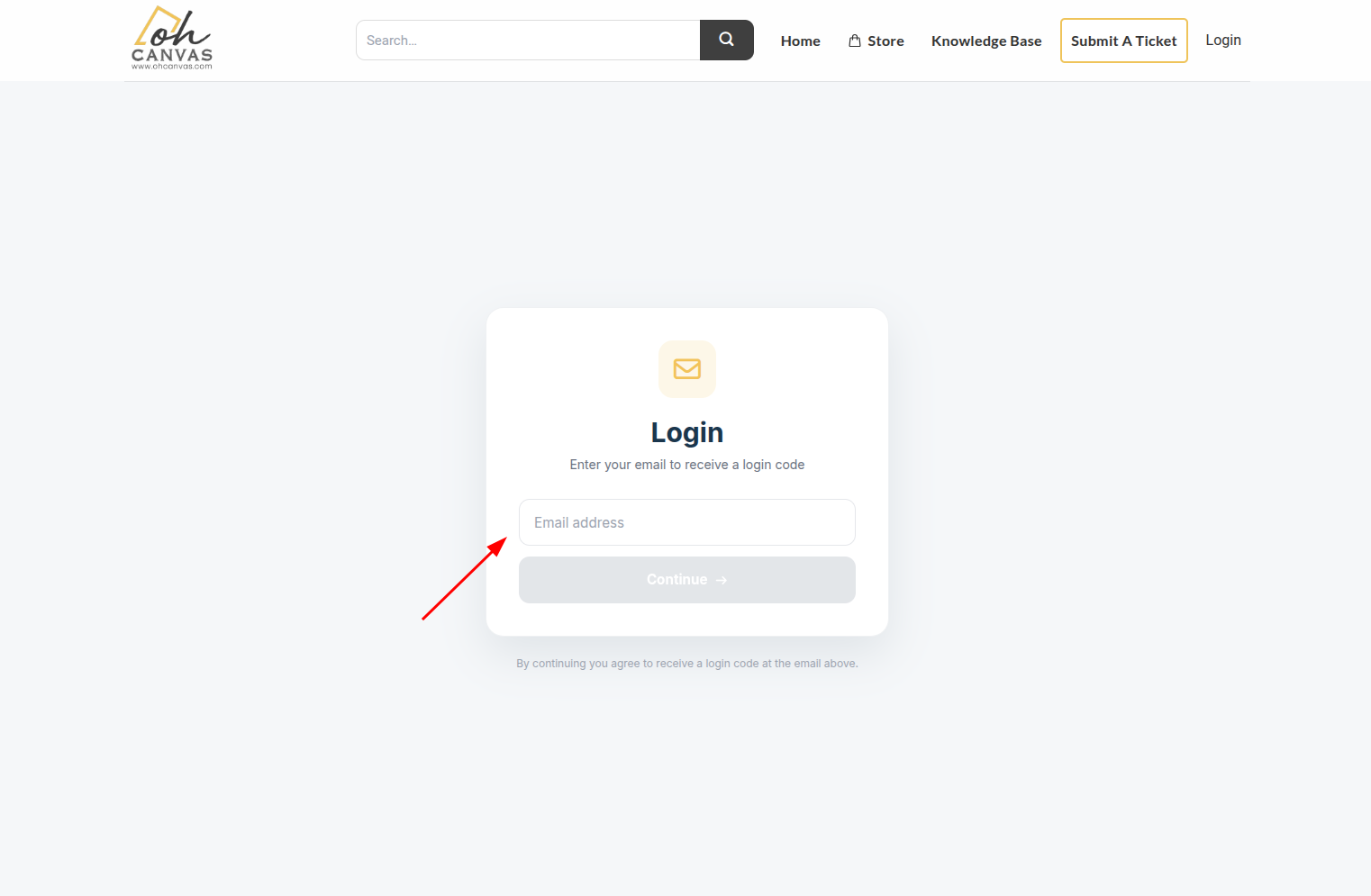
You need to be logged in with the email used to place the order. We use a one-time code (OTP) — no password required.
- Go to the Login page.
- Enter the email address you used at checkout and click Continue.
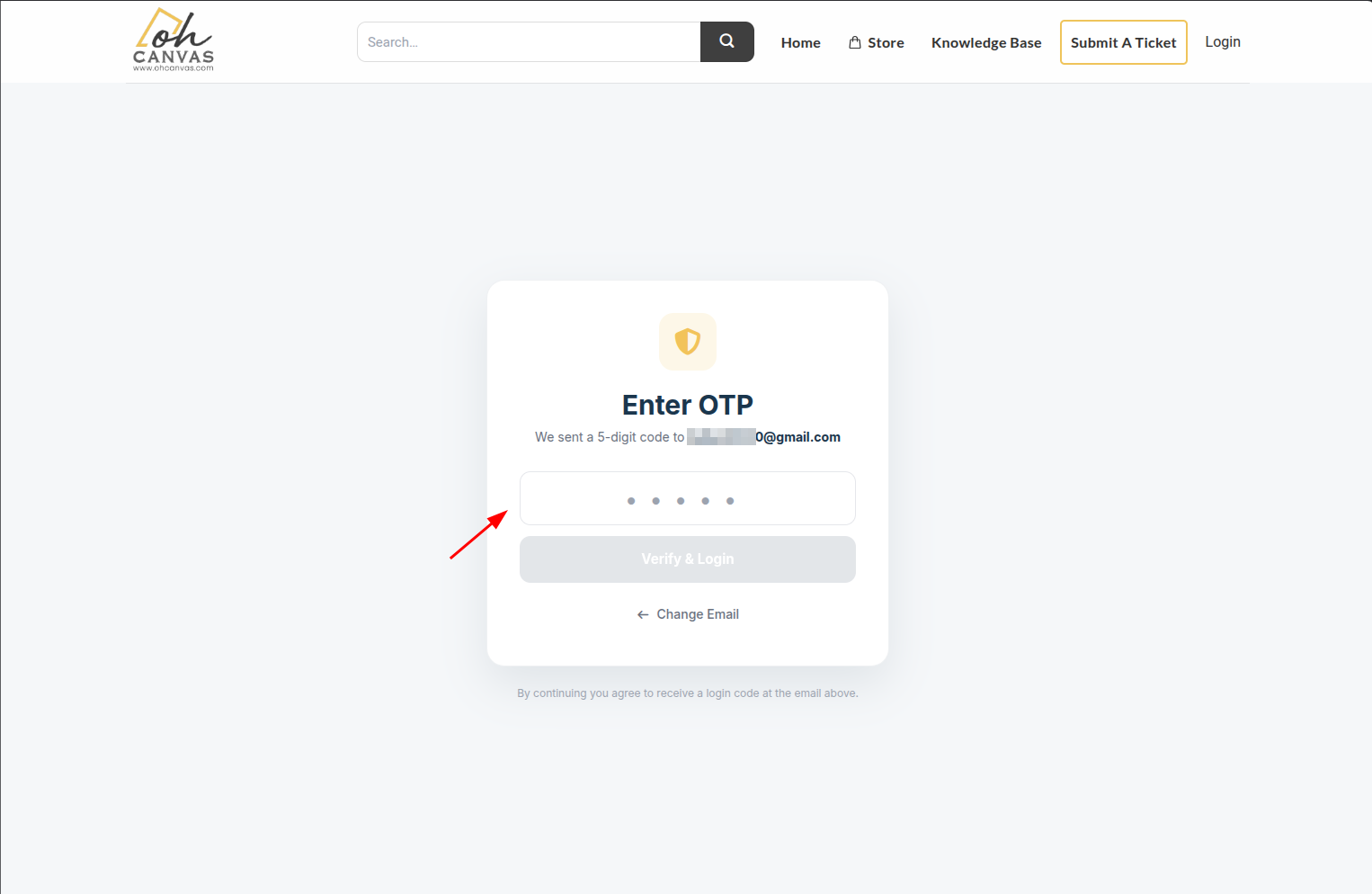
- Open your inbox and copy the 5-digit code we just emailed you (check Spam if you don’t see it within a minute).
- Type the code on the OTP screen and click Verify & Login.
Step 2 — Open the Order
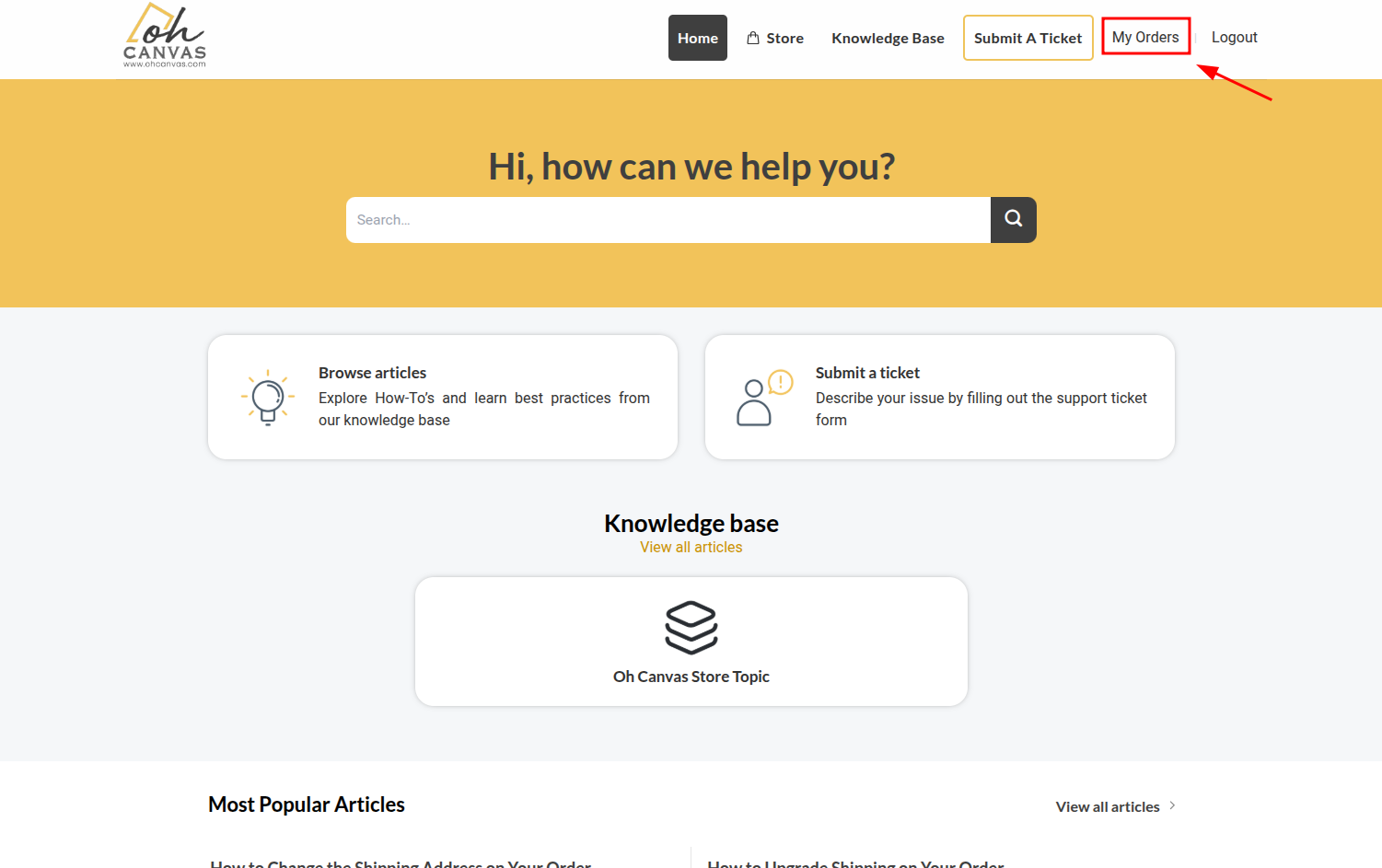
- You will land on the My Orders page after login.
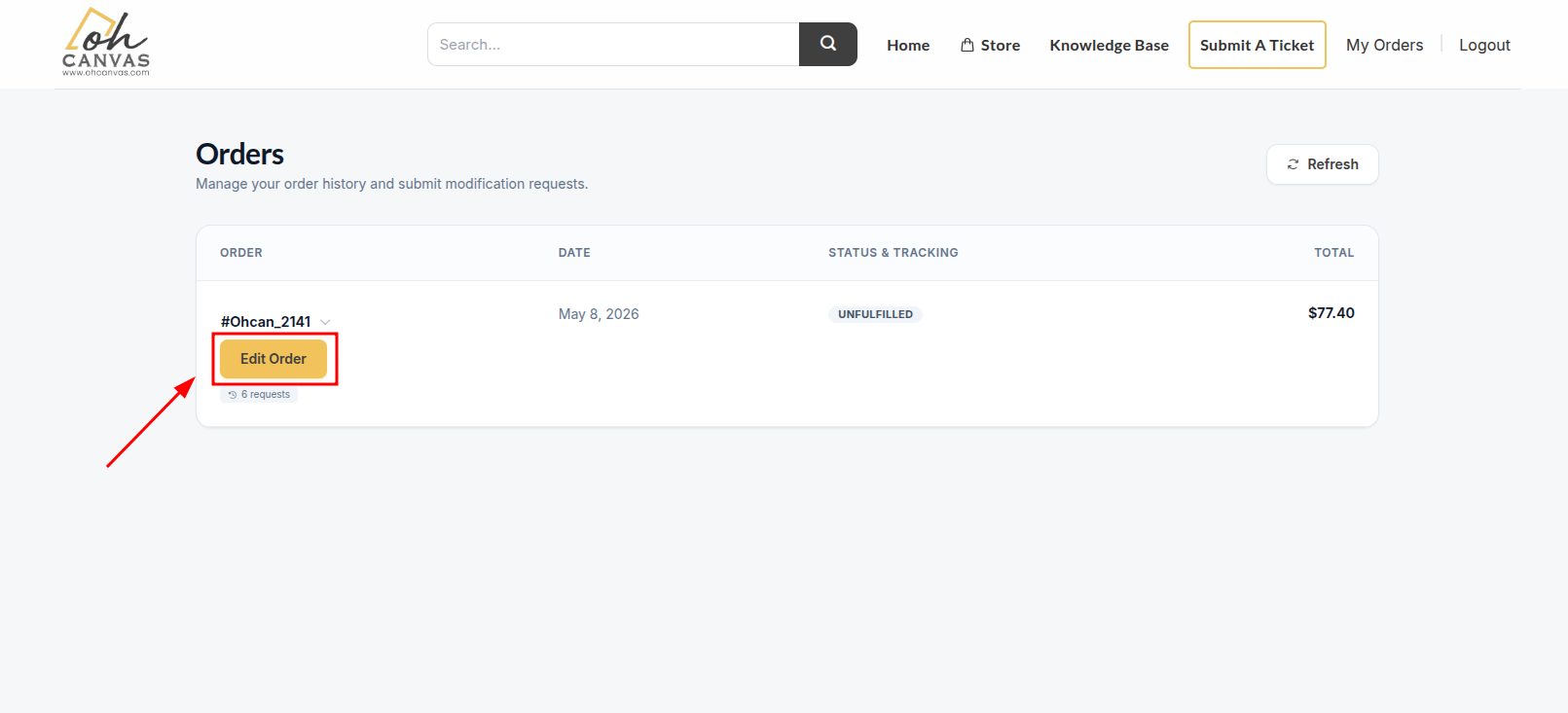
- Find the order you want to update and click the gold Edit Order button right below the order number.
- If the order shows a grey Locked badge, it has already shipped and the address can no longer be changed online.
Step 3 — Choose “Change Shipping Address”
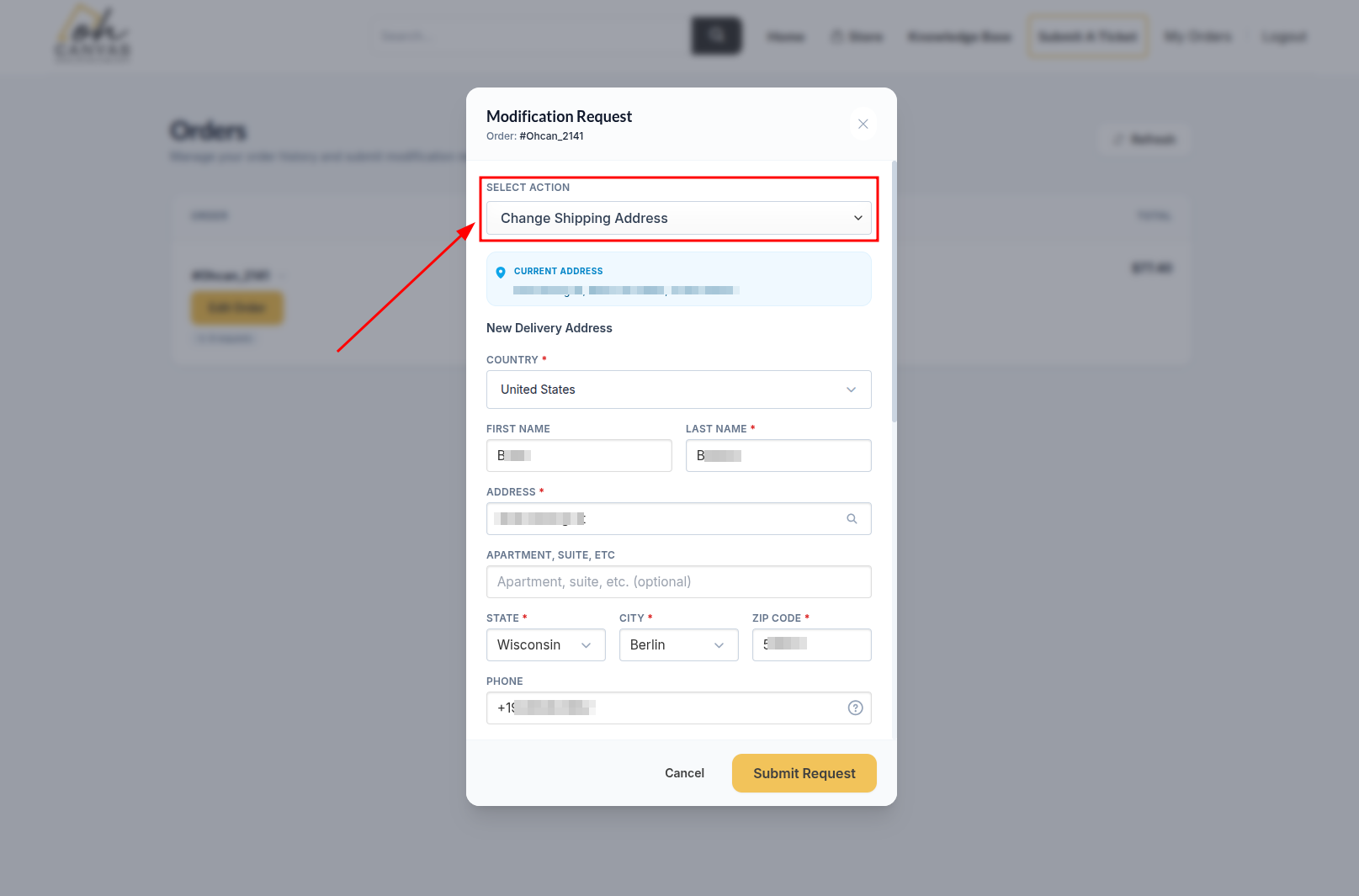
- The Modification Request modal opens.
- Open the Select Action dropdown.
- Pick Change Shipping Address. A blue panel will appear at the top showing your Current Address so you can compare while you type the new one.
Step 4 — Fill in the New Address
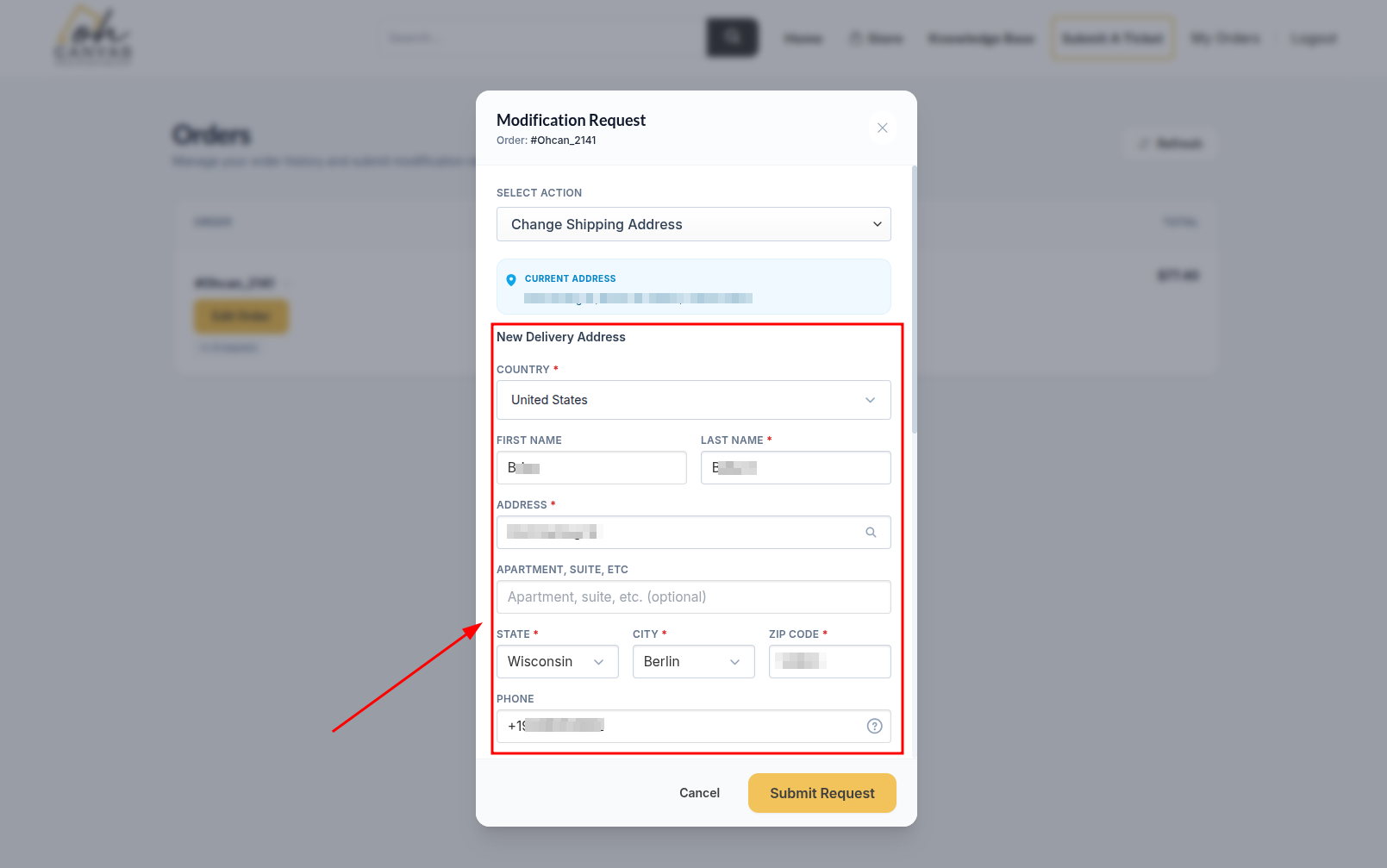
Required fields are marked with a red asterisk (*).
- Country * — pick from the dropdown. Only supported countries appear.
- First name — optional, but recommended.
- Last name *
- Address * — start typing and choose a Google Places suggestion to auto-fill street, city, state, and ZIP. You can still edit any field manually after.
- Apartment, suite, etc. — optional, for unit/floor numbers.
- State * · City * · Zip code *
- Phone — optional, but strongly recommended in case the carrier needs to reach you.
Step 5 — Submit and Confirm
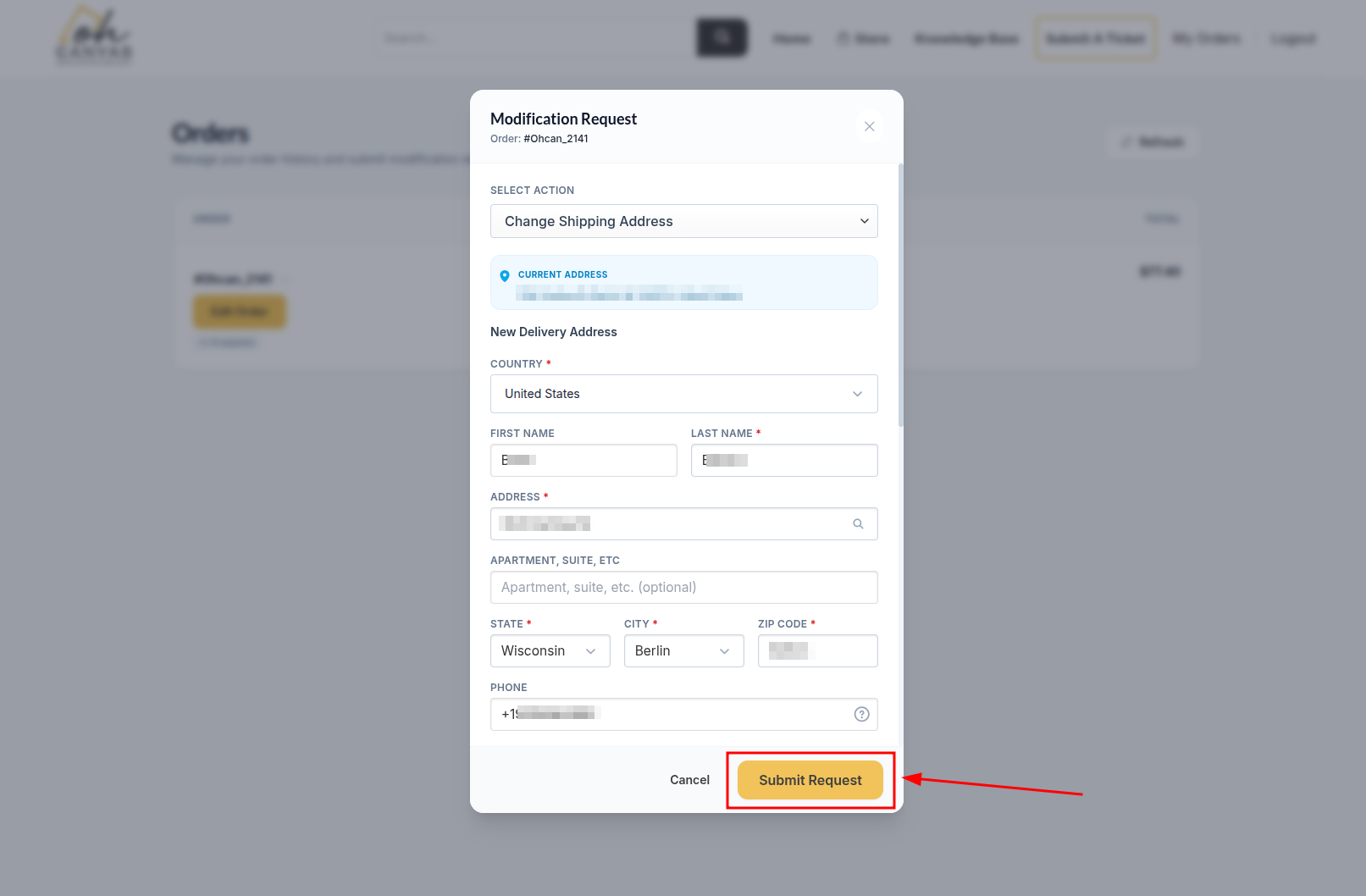
- Click the gold Submit Request button.
- The system runs an automatic address verification.
- If the address passes verification, the change is applied immediately and a green success notification appears in the top-right corner.
- If the address can’t be fully verified, an amber warning appears asking you to double-check the details. Review the form — if it’s correct, click the dark Confirm & Update Address button to proceed anyway.
Confirmation
Once submitted successfully:
- A green success toast slides in from the top-right of the page and auto-dismisses after a few seconds.
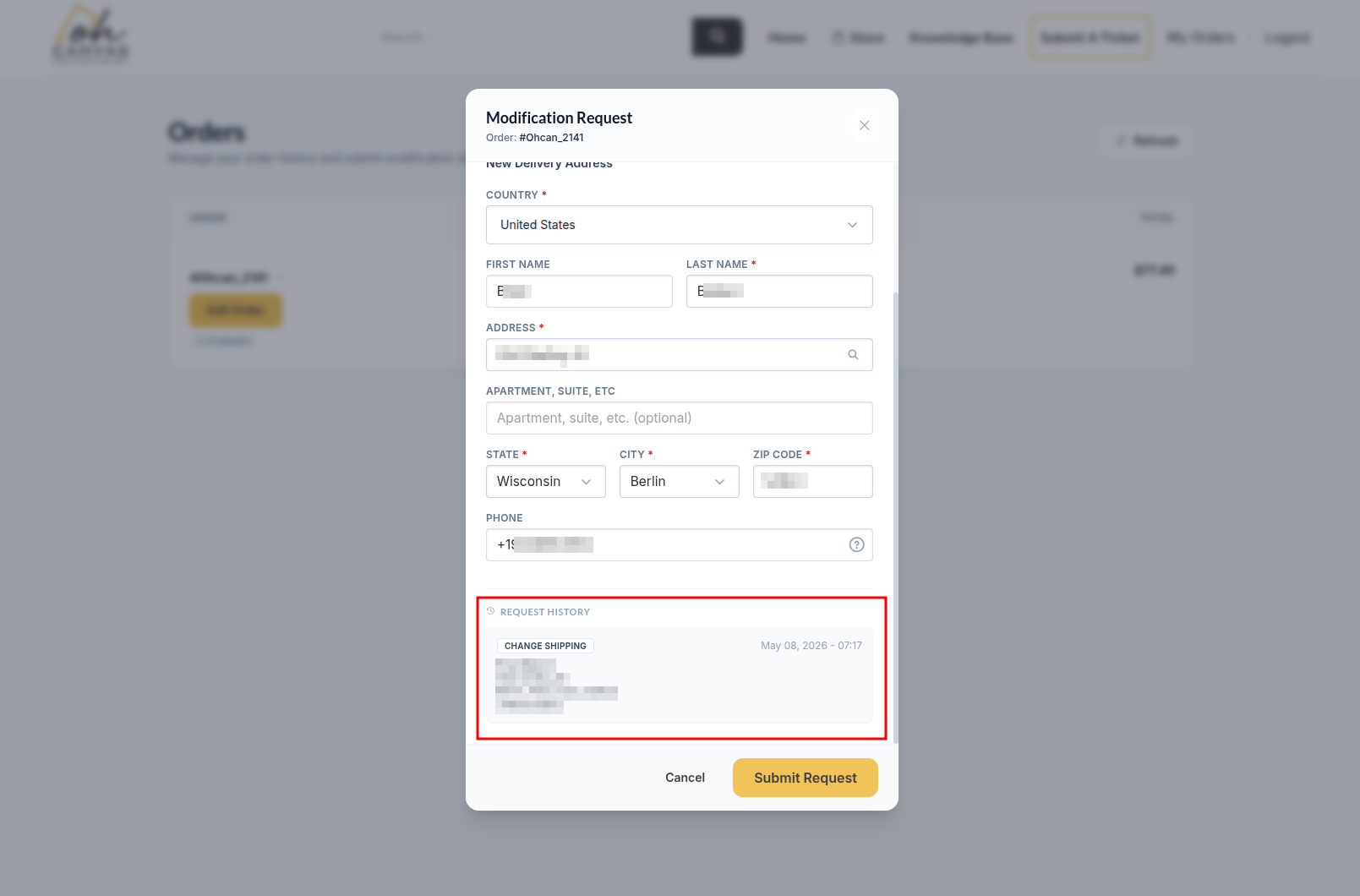
- The new address is logged in the order’s Request History so you have a record. Open the order modal again any time to review it.
- A confirmation email is sent to your account email.
Frequently Asked Questions
My country isn’t in the dropdown — can you still change my address?
Online address changes are limited to the 6 countries listed above. For other destinations, please submit a support ticket as soon as possible and our team will help manually.
What if I get the amber “please confirm this address” warning?
It means our verification system couldn’t fully match your address. Re-read every field carefully. If the address is right (e.g., a brand-new building), click the dark Confirm & Update Address button. If something looks off, fix it and submit again.
Can I change the address after the order ships?
Unfortunately no — once the order is fulfilled, the carrier controls delivery. In some cases the carrier offers a “redirect” option through their tracking page; otherwise, the package will be returned to us and we’ll contact you about reshipping.
Will the shipping cost change if I switch country?
The address change itself is free. However, if the new destination requires a different shipping method, our team may reach out before fulfilling the order.
Still have questions? Reach out to our support team and we’ll be happy to help.