
Need your order to arrive faster? You can upgrade the shipping tier on any unfulfilled order in just a few clicks. This guide walks you through the entire process — from logging in to completing the PayPal payment.
Before You Begin
- You must be using the same email address that placed the order.
- Shipping upgrades are only available for orders that are not yet fulfilled. Once an order has shipped, the option is replaced with a grey “Locked” badge.
- An online payment via PayPal is required to confirm the upgrade. You can pay with your PayPal balance or a debit/credit card through PayPal Guest Checkout.
Step 1 — Sign in to Your Account
You need to be logged in with the email used to place the order. We use a one-time code (OTP) — no password required.
- Go to the Login page.
- Enter the email address you used at checkout and click Continue.
- Open your inbox and copy the 5-digit code we just emailed you (check Spam if you don’t see it within a minute).
- Type the code on the OTP screen and click Verify & Login.
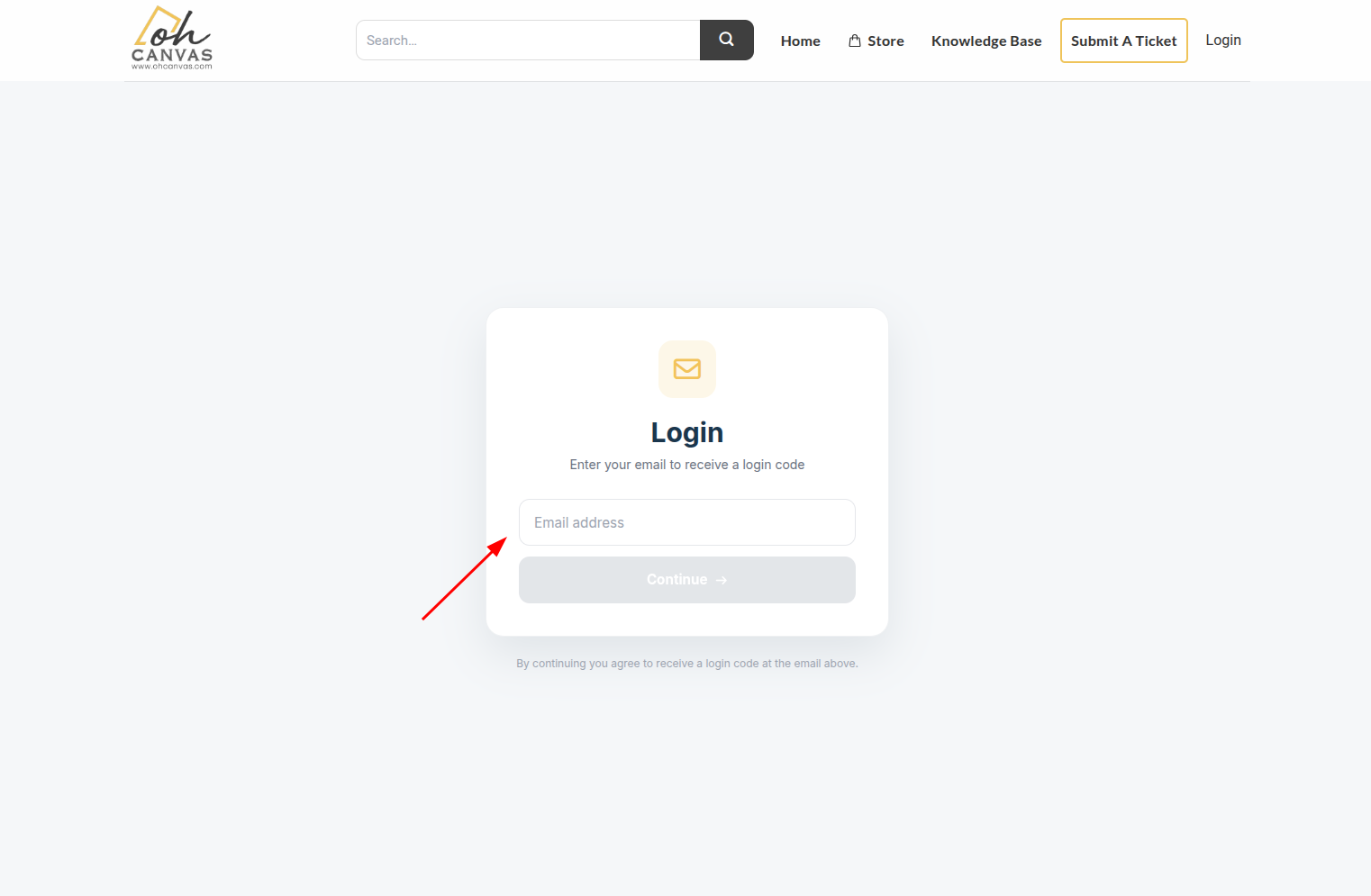
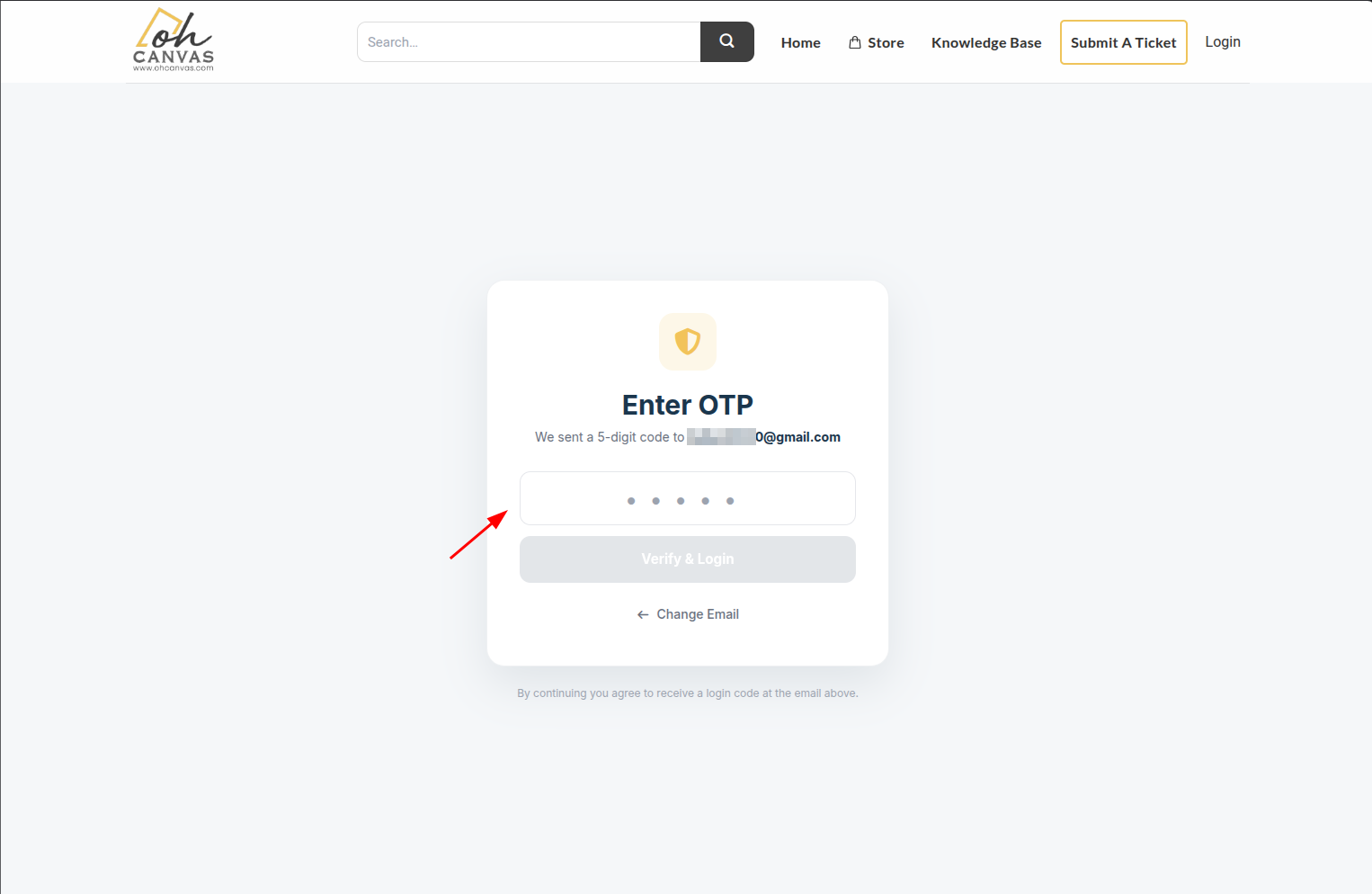
Tip: Use the same email that received your order confirmation. If the system says “customer not found”, double-check for typos or try another email you may have used.
Step 2 — Open the Order You Want to Upgrade
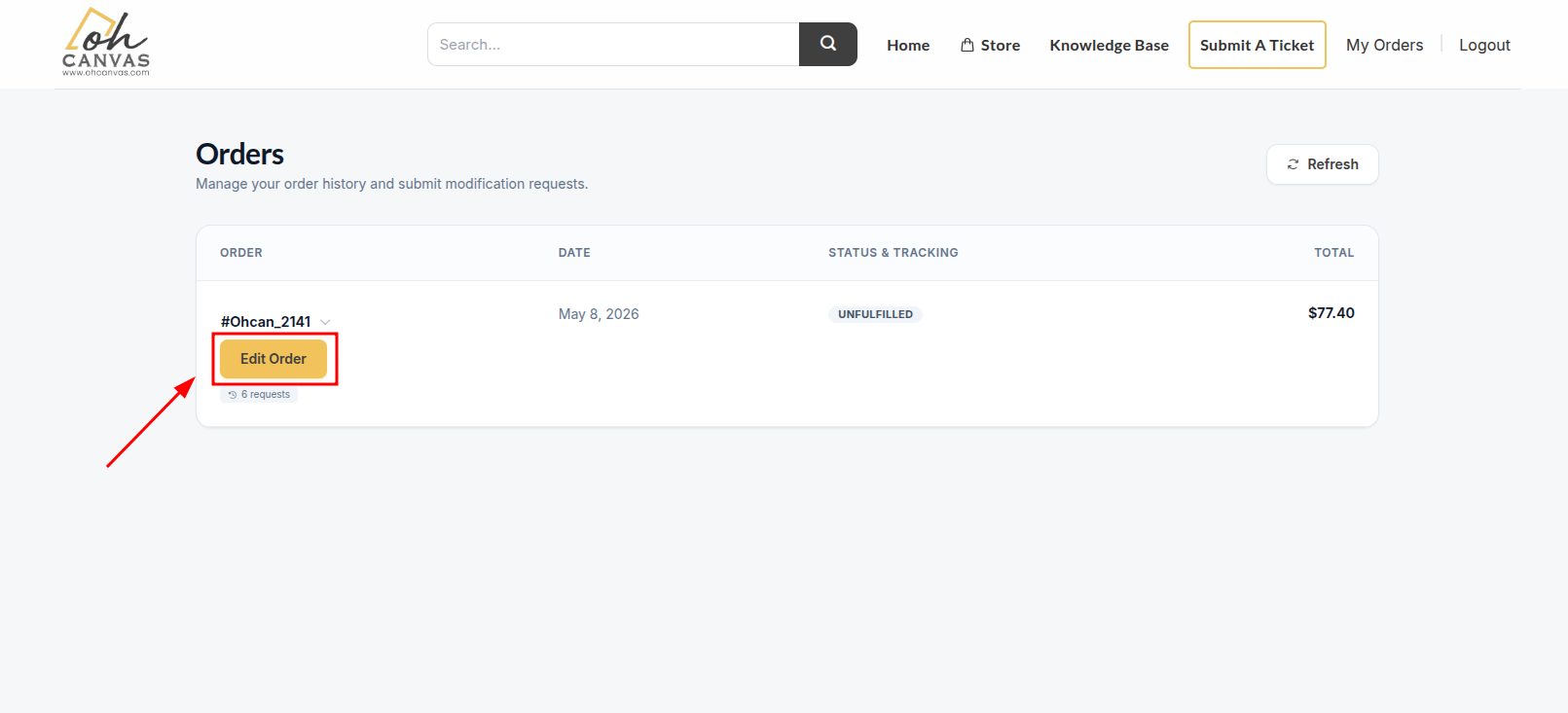
- After logging in you will land on the My Orders page, which lists every order tied to your email.
- Locate the order you want to upgrade and click the gold Edit Order button that appears directly below the order number.
- If you only see a grey Locked badge instead of the button, the order has already been fulfilled and cannot be upgraded — please contact support if you need help.
Step 3 — Choose “Upgrade Shipping”
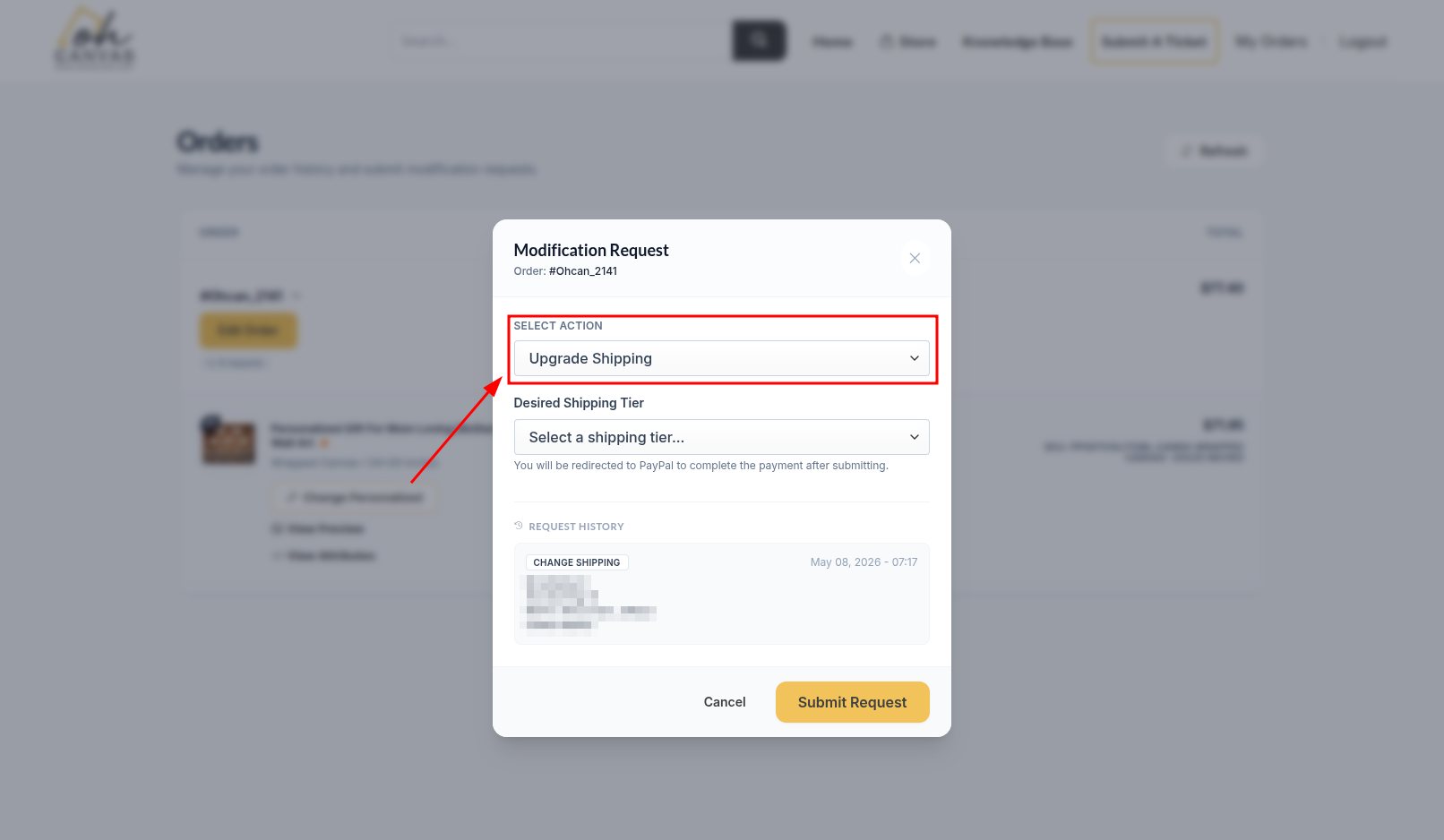
- The Modification Request modal will open showing your order number at the top.
- Open the Select Action dropdown.
- Choose Upgrade Shipping.
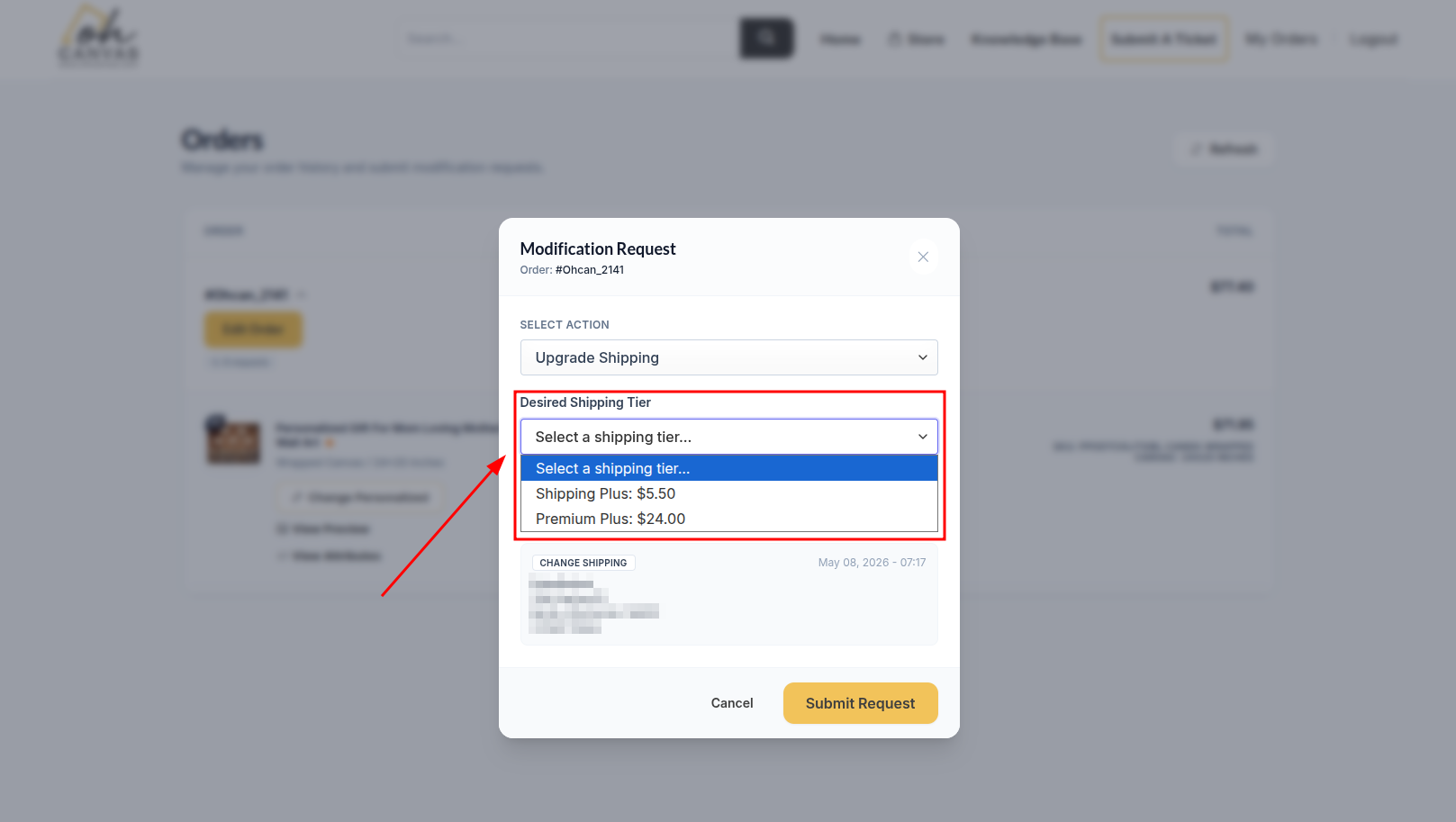
Step 4 — Pick Your Shipping Tier
Select the tier that fits your needs from the Desired Shipping Tier dropdown. Two upgrade tiers are currently available:
- Shipping Plus — $5.50
- Premium Plus — $24.00
Step 5 — Pay with PayPal
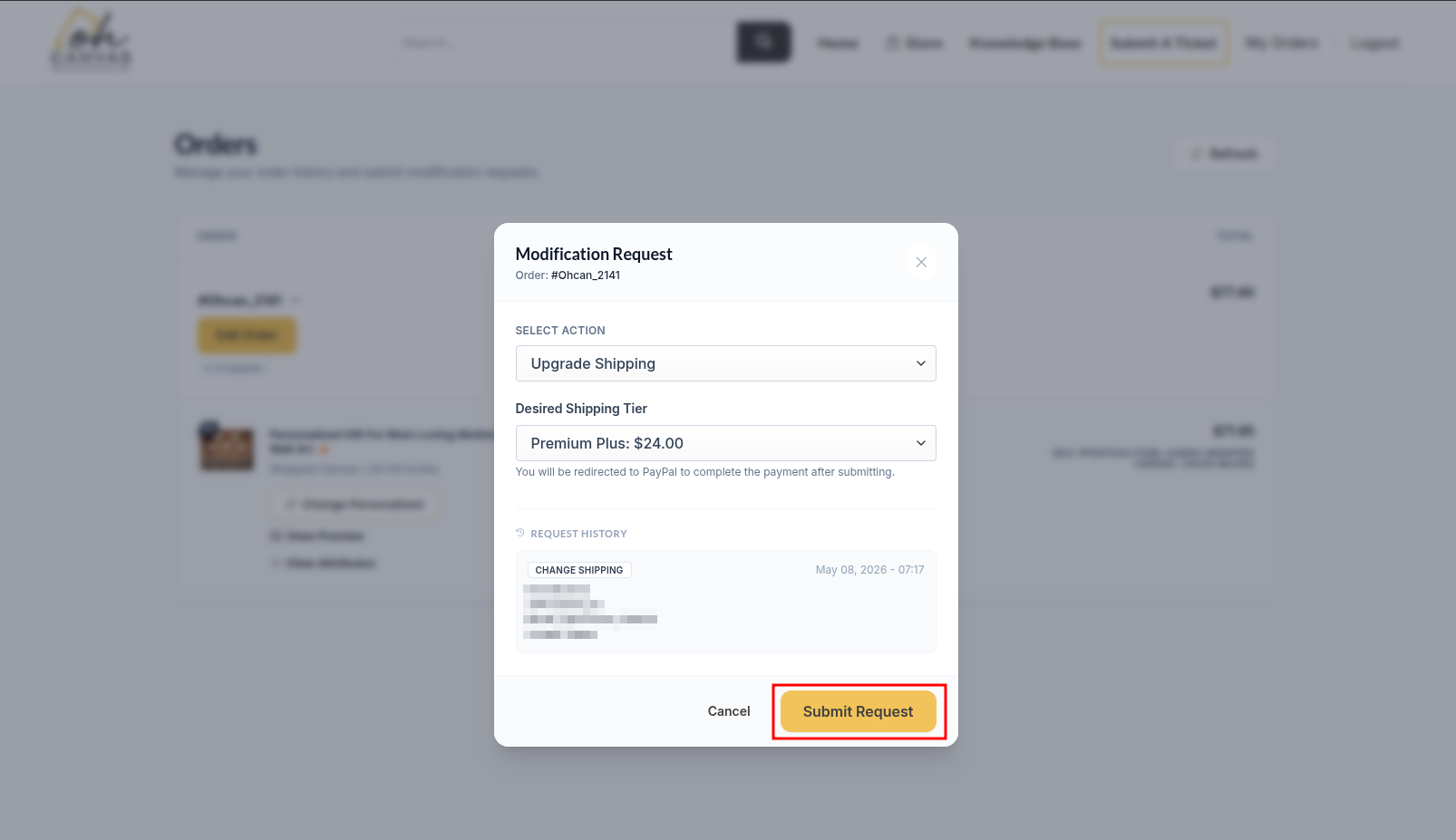
- Click the gold Submit Request button at the bottom of the modal.
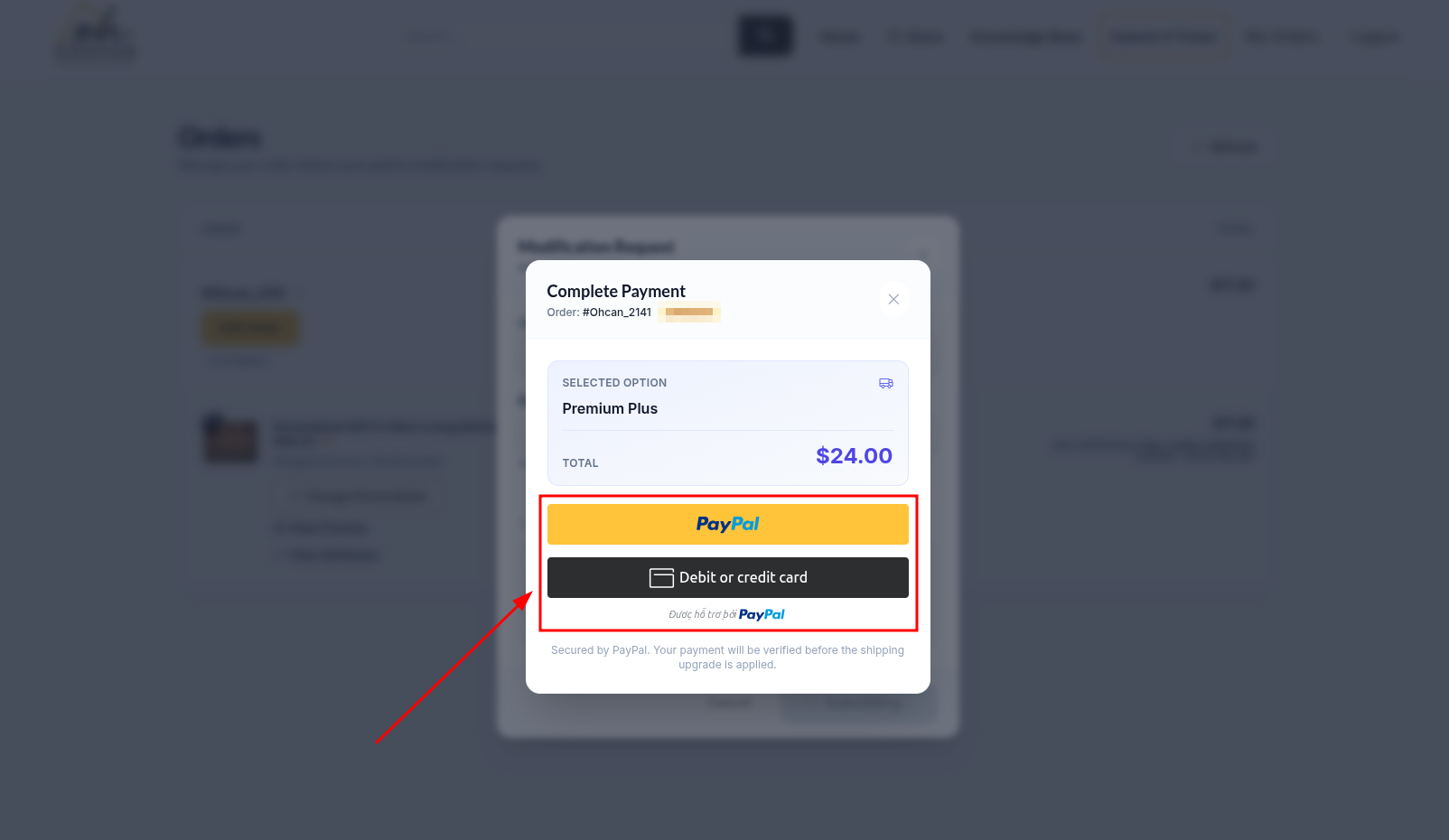
- A PayPal payment popup will open showing the upgrade summary (tier and amount). Review it.
- Click the yellow PayPal button. Sign in to PayPal — or pay as a Guest with a card — and authorize the payment.
- Once PayPal confirms the payment, the upgrade is applied to your order automatically. You don’t need to do anything else.
Confirmation
Once everything goes through:
- A green success notification slides in from the top-right of the screen and disappears on its own after a few seconds.
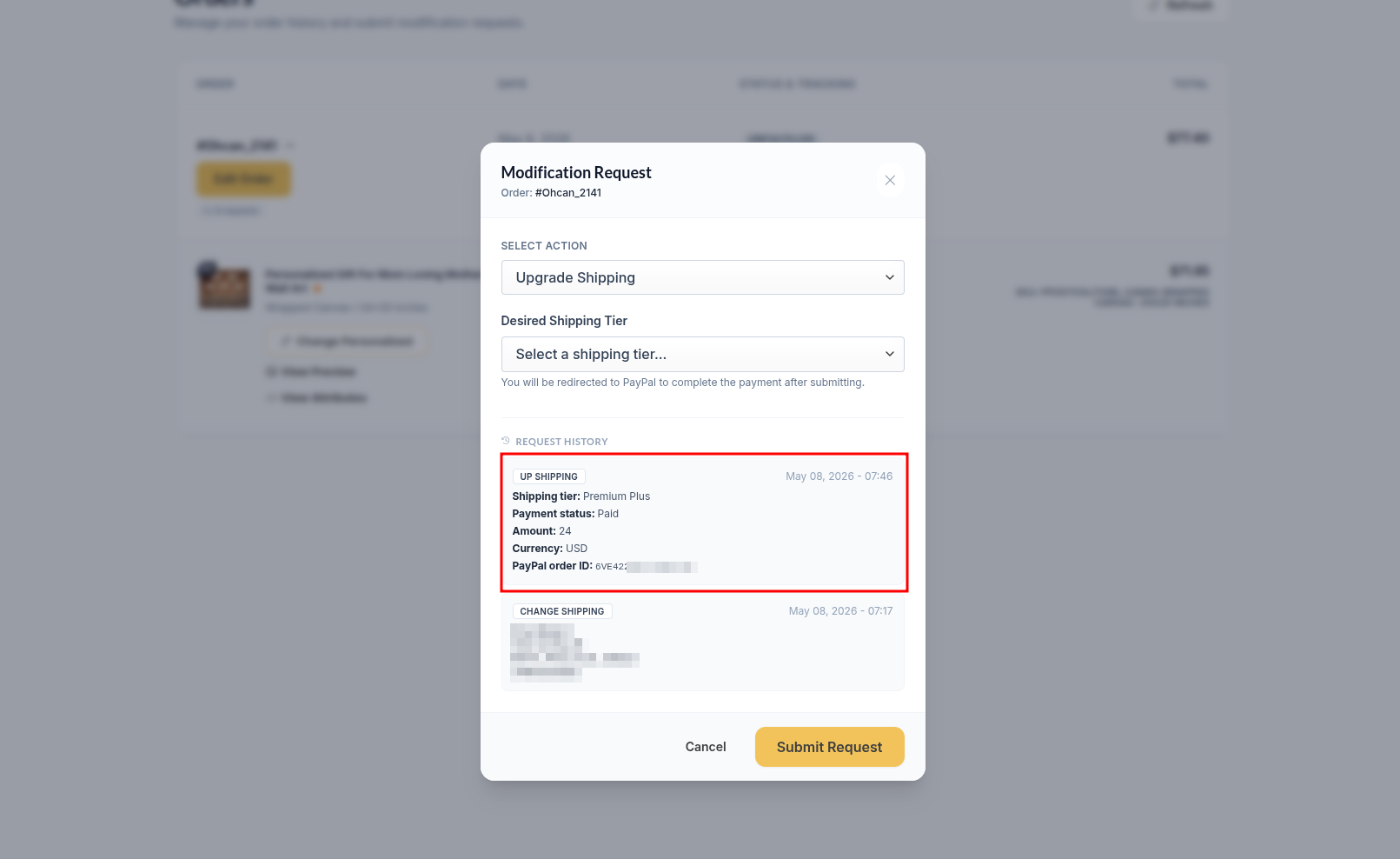
- The upgrade is logged in the order’s Request History with the chosen tier, amount, currency, and PayPal order ID — open the order modal again any time to review it.
- A confirmation email is sent to the address on the order.
Frequently Asked Questions
Why does my order show “Locked” instead of “Edit Order”?
The order has already been fulfilled (handed to the carrier). We can no longer change the shipping tier at that point.
My PayPal payment failed or I closed the popup. What now?
Nothing has been charged. Just re-open the order, choose Upgrade Shipping again, and submit. The upgrade only takes effect once PayPal returns a successful, captured payment.
Can I change my mind after paying?
Once the payment is captured the upgrade is locked in. If you need to reverse it, please submit a support ticket as soon as possible.
Still have questions? Reach out to our support team and we’ll be happy to help.